
Spot Meter Mk.3 Update - How to install - Apple/Mac
1 - Connect a USB-C cable into your computer’s USB port. The included USB-C cable is ideal. If not using the included cable, make sure the cable is not a power-only cable and has data lines, most cords included for devices that only need charging (flashlights, earbuds, etc.) don’t include data lines. Cell phones, USB hubs, any cable that came with device needing more than just power will have them.
2 - Download the firmware file by clicking here
and download the installer command file and installer script file(if you haven’t downloaded them in the past)
3 - Wait for the meter to turn off, if it is currently on.
4 - Be ready to look into the meter’s viewing lens. Hold down the right button while inserting the USB-C cable into the meter’s USB port.
5 - When prompted on the internal screen, release the right button and hold the left button
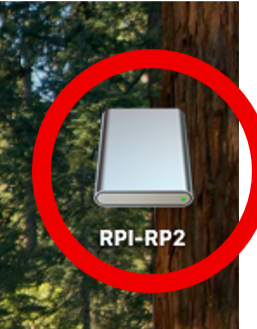
6 - Release the left button a couple seconds after the screen goes black. A storage device called “RPI-RP2” should appear on your Mac’s desktop. Don’t open the RPI-RP2 folder.
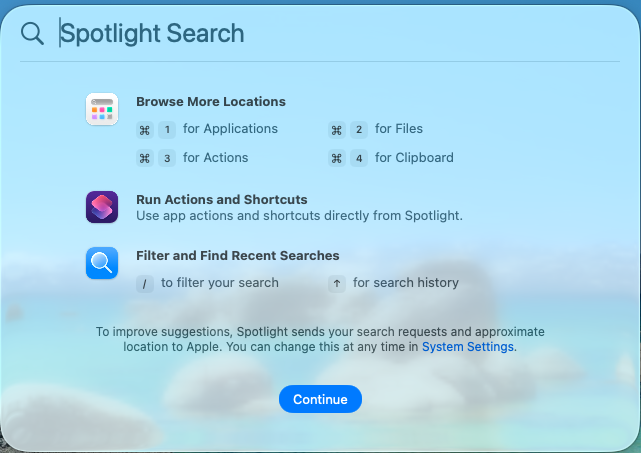
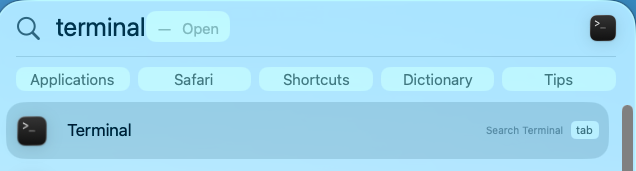
7 - Press Command + Spacebar to open Spotlight Search. Type in “terminal” and press the Return key. The Terminal window will open.
8 - Open your downloads folder and arrange it next to the Terminal window.
9 - Type into the terminal line bash, followed by a space, then click and drag the command file from your downloads folder to the terminal window.
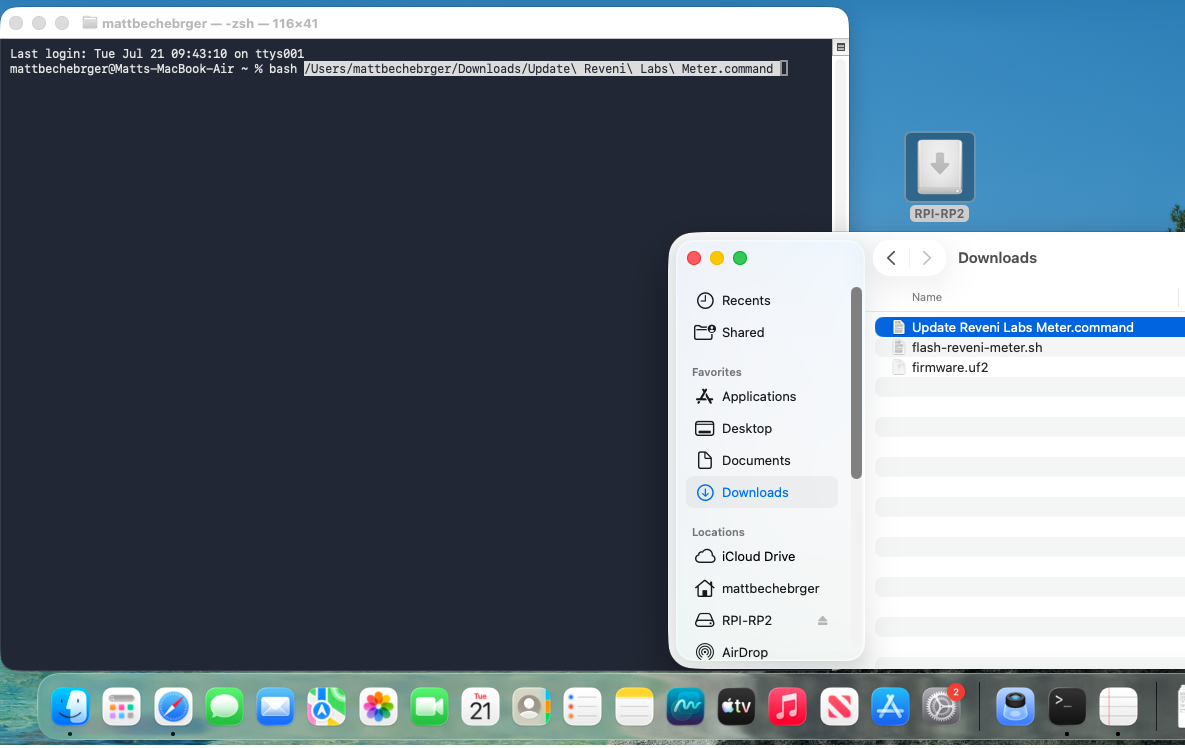
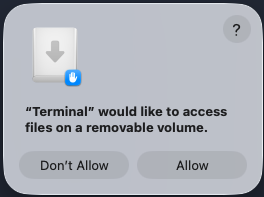
10 - Press the Return key. If prompted to allow “Terminal” to access your downloads, click Allow.
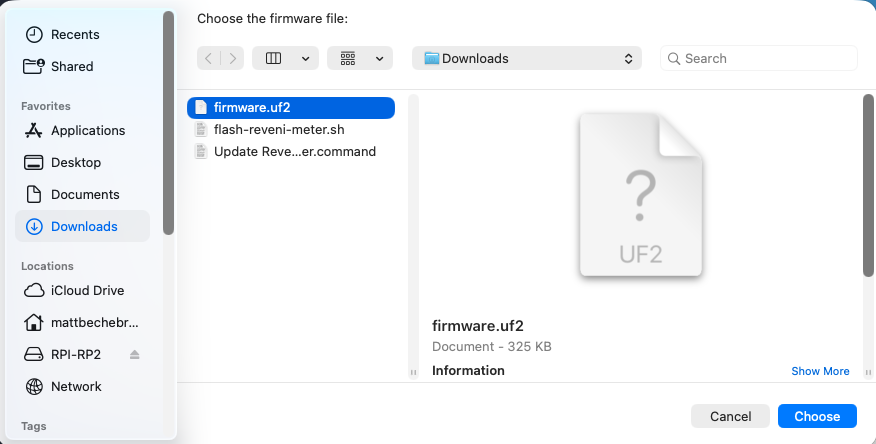
11 - A file selection window will appear. Select the firmware file you wish to install and click Choose.
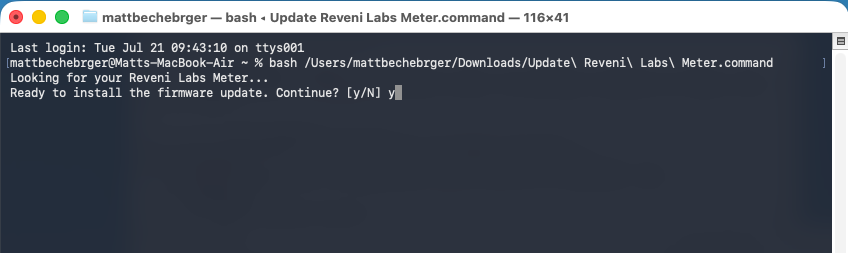
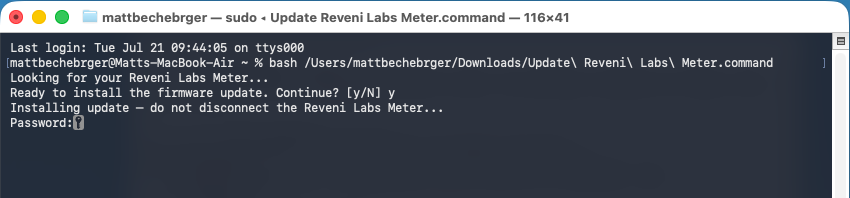
12 - The terminal will say “Looking for your Reveni Labs Meter…”. If it doesn’t progress within 10 seconds, try disconnecting the meter from USB, then plug it back in without pressing any buttons (it is already still in update mode) and start the terminal commands over again.
When prompted to continue, type “y” and press Return.
13 - When prompted, enter your computer password to authorize the terminal to transfer the file. The password will not appear when typing, so type carefully.
14 - After the terminal shows done, the meter will self-eject and start running.
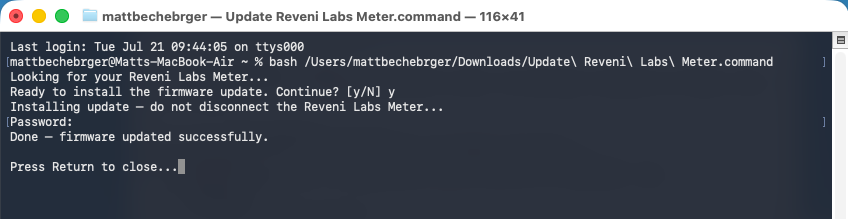
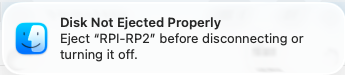
Ignore any warnings about “Disk Not Ejected Properly”